
AceBase Setup Guide
Five steps, about three minutes. Do it on your phone.
Before you start
iPhone
Nothing to install. The built-in Passwords app keeps your sign-in code.
Android
Install Google Authenticator from the Play Store.
1Set your password
Open the link in the invite email.
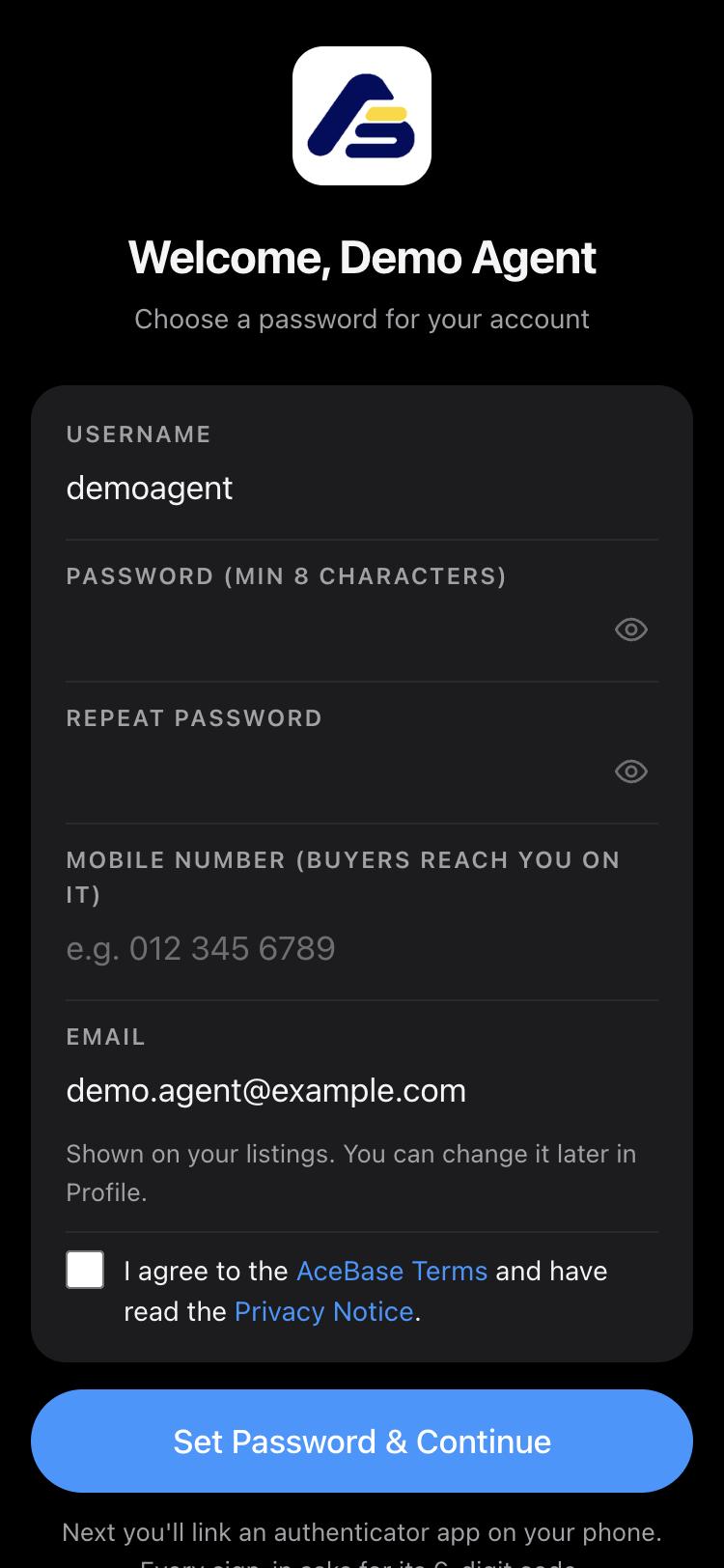
Type a password twice, fill in your mobile number, tick I agree, tap Set Password & Continue.
2Link your sign-in code
iPhone
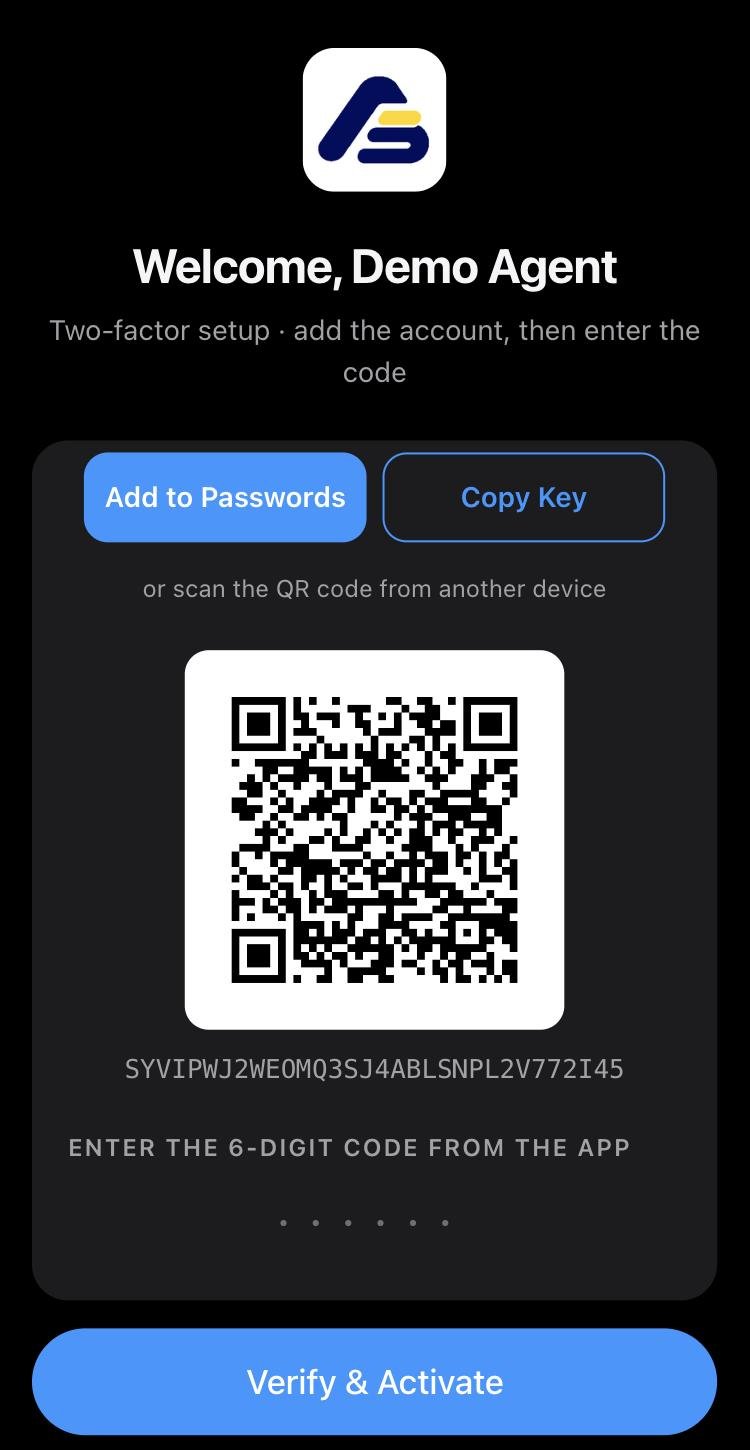
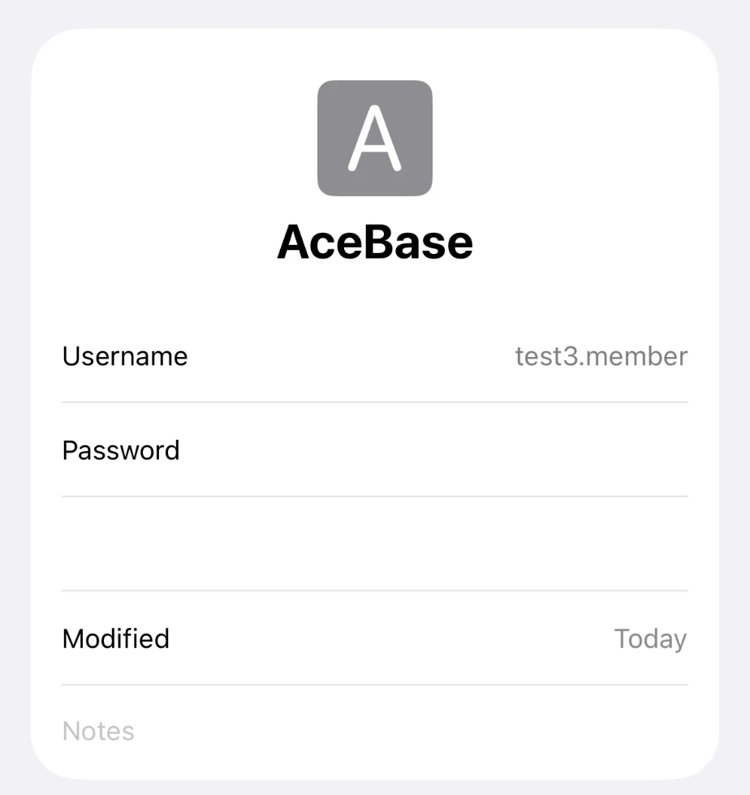
Tap Copy Key, then tap Add to Passwords.
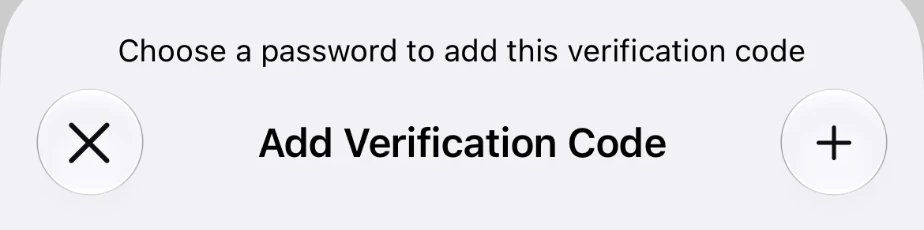
The Passwords app opens. Tap + at the top right.
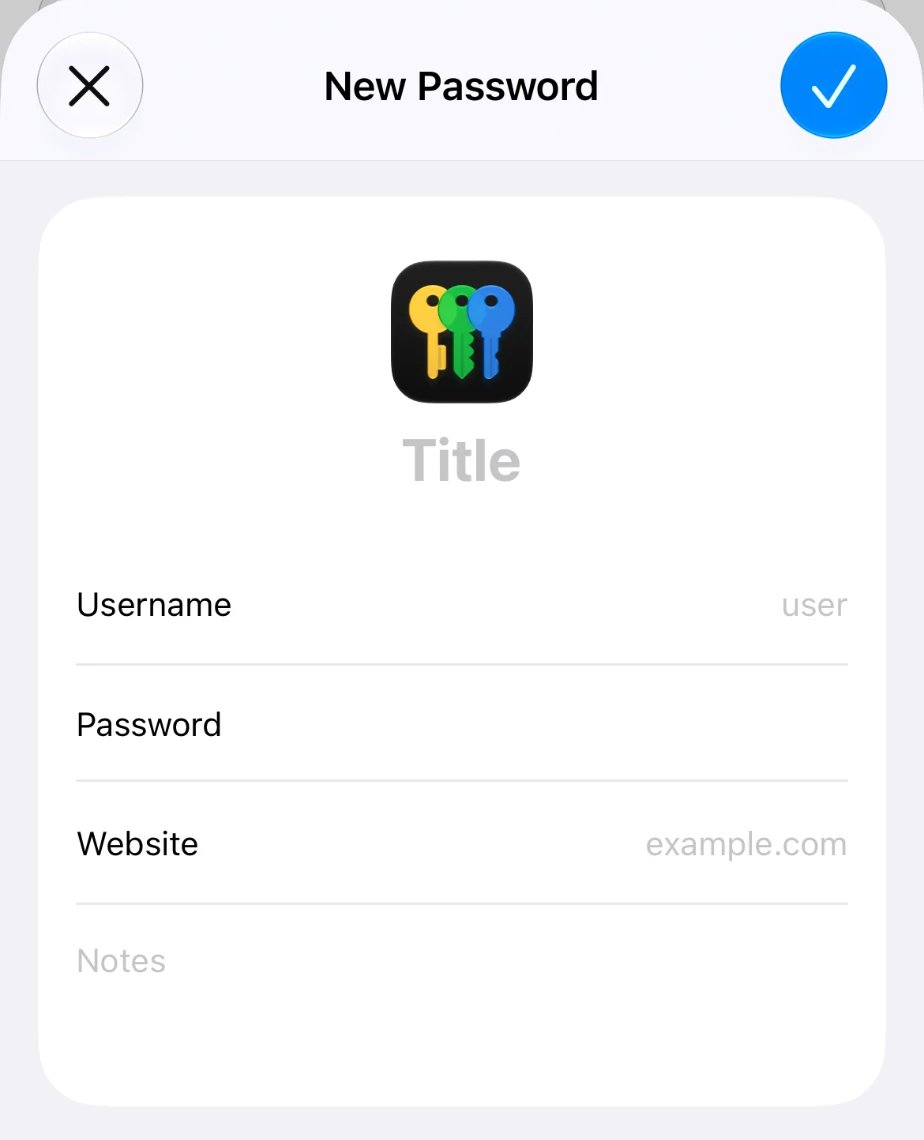
Title: AceBase. Username: your username. Password: hold the field and tap Paste (the key you copied). Tap the blue tick.
Passwords now has an AceBase entry with a 6-digit code under it. Tap ◀ Safari at the top left to go back.
Android
Tap Open in Authenticator.
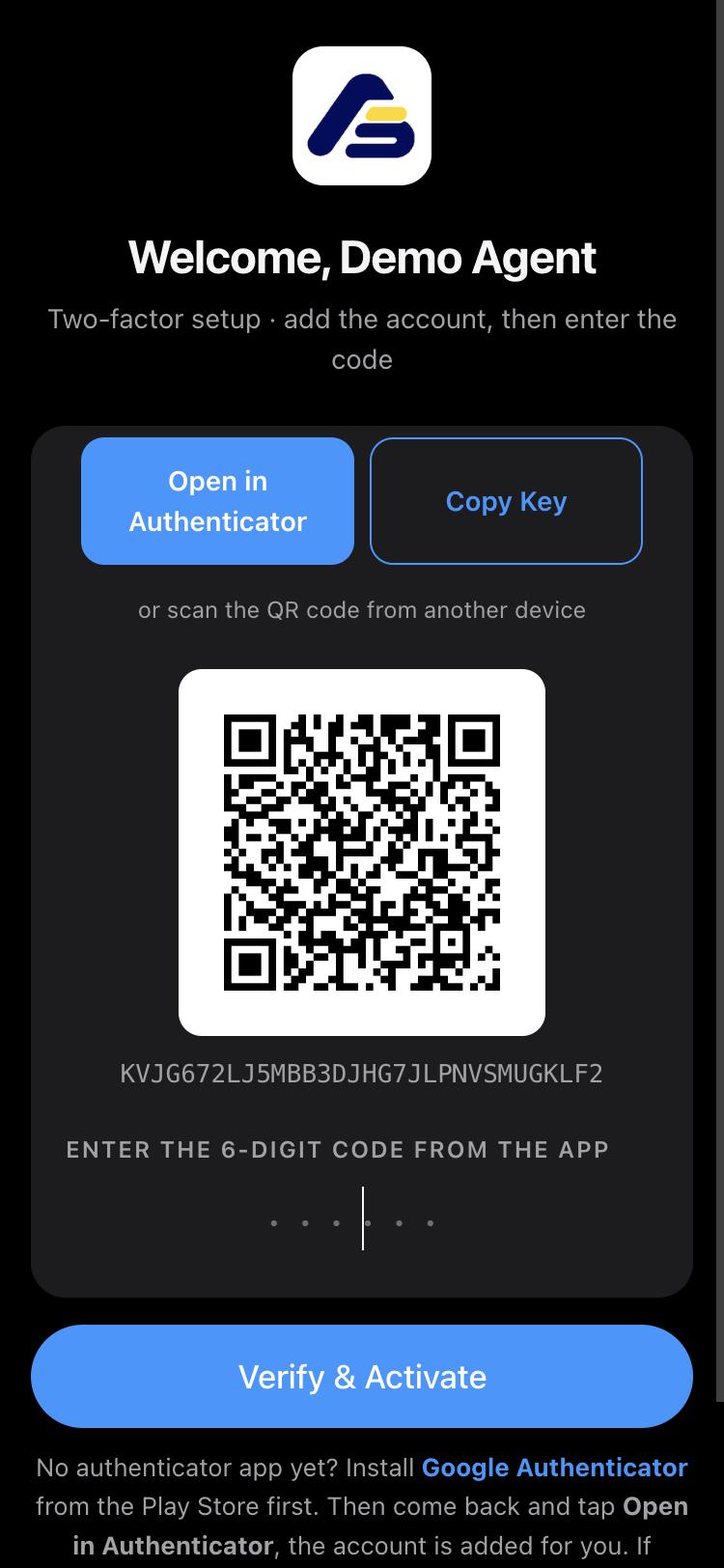
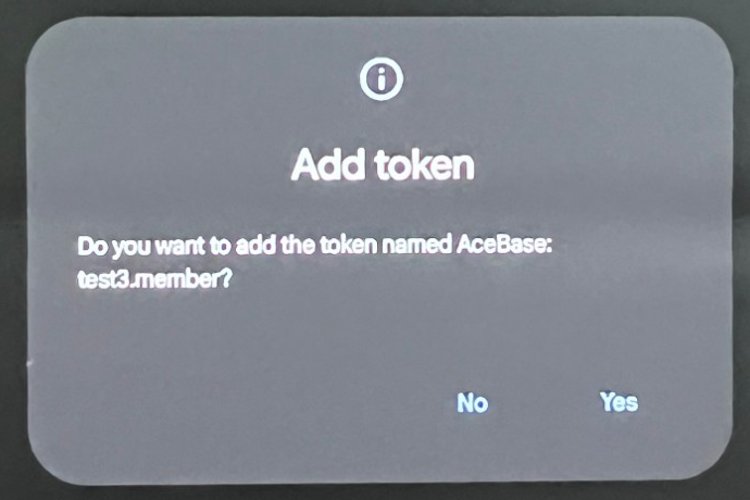
Google Authenticator opens and asks Add token. Tap Yes.
It now shows a 6-digit code for AceBase. Go back to Chrome.
Nothing opened? Install Google Authenticator, come back, tap Open in Authenticator again.
Back in AceBase, type the 6-digit code, tap Verify & Activate.
On a computer? Scan the QR code with the app on your phone instead.
3Save your recovery codes
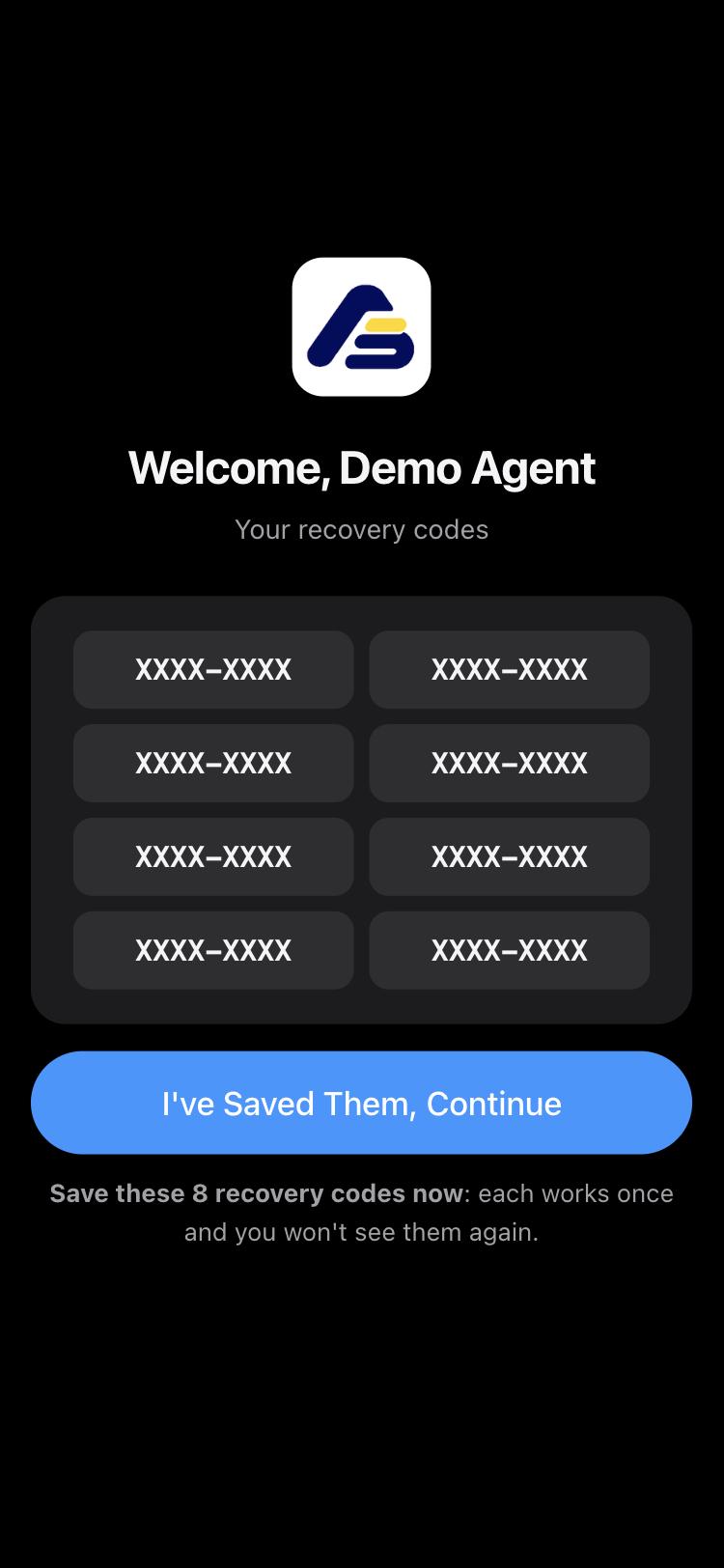
Take a screenshot of the 8 codes, then tap I've Saved Them, Continue.
If you lose your phone, one of these codes gets you in. Each works once.
4Add AceBase to your Home Screen
AceBase asks you to add it to your Home Screen so it opens like an app.
Don't see the options below? You are inside WhatsApp. Tap Open in Safari or Open in Chrome first.
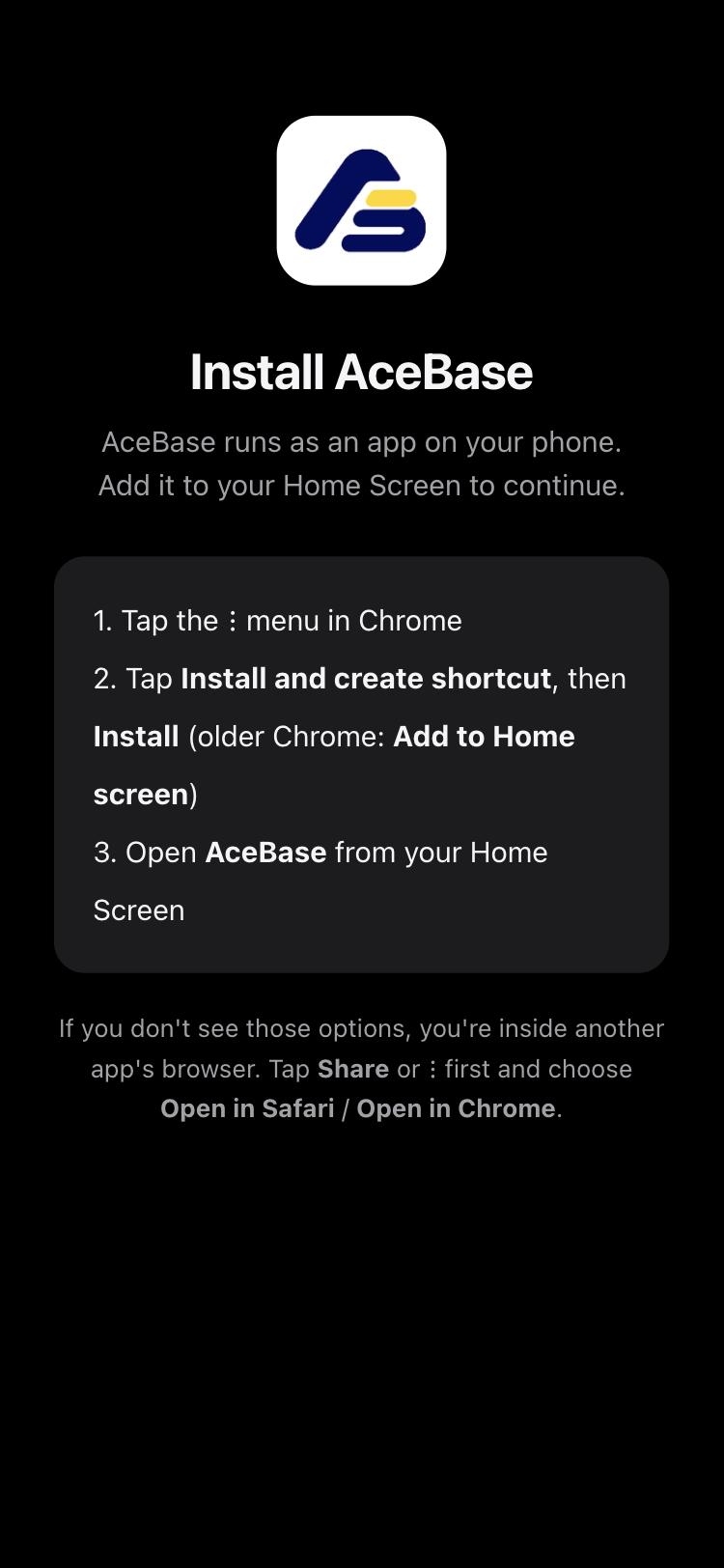
iPhone (Safari)
Tap Share at the bottom, then Add to Home Screen, then Add.
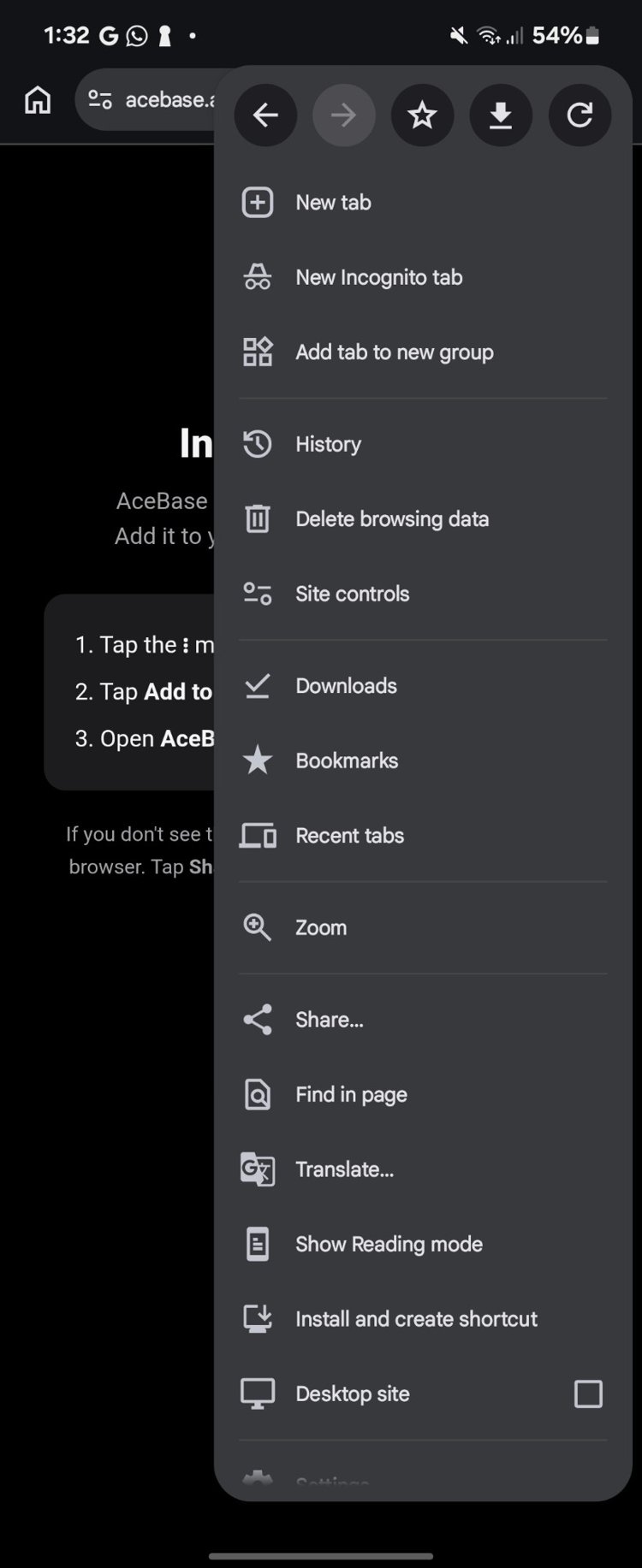
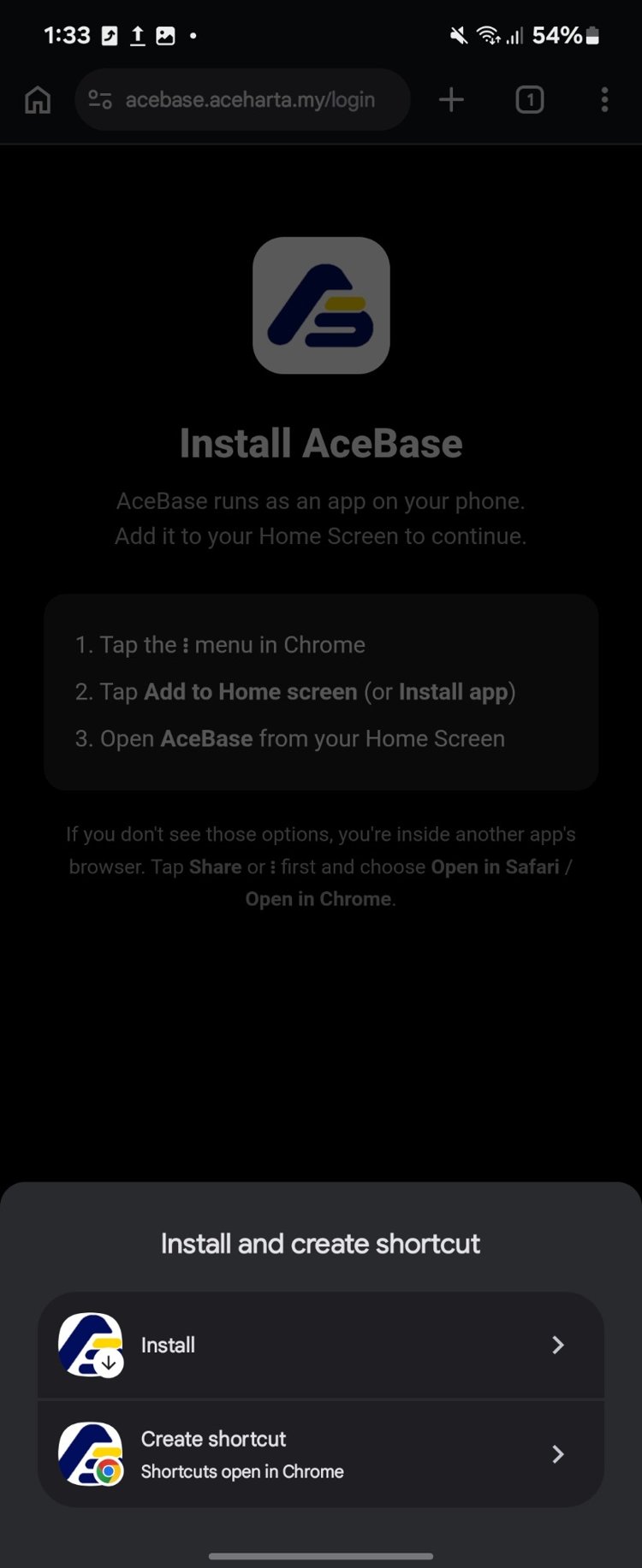
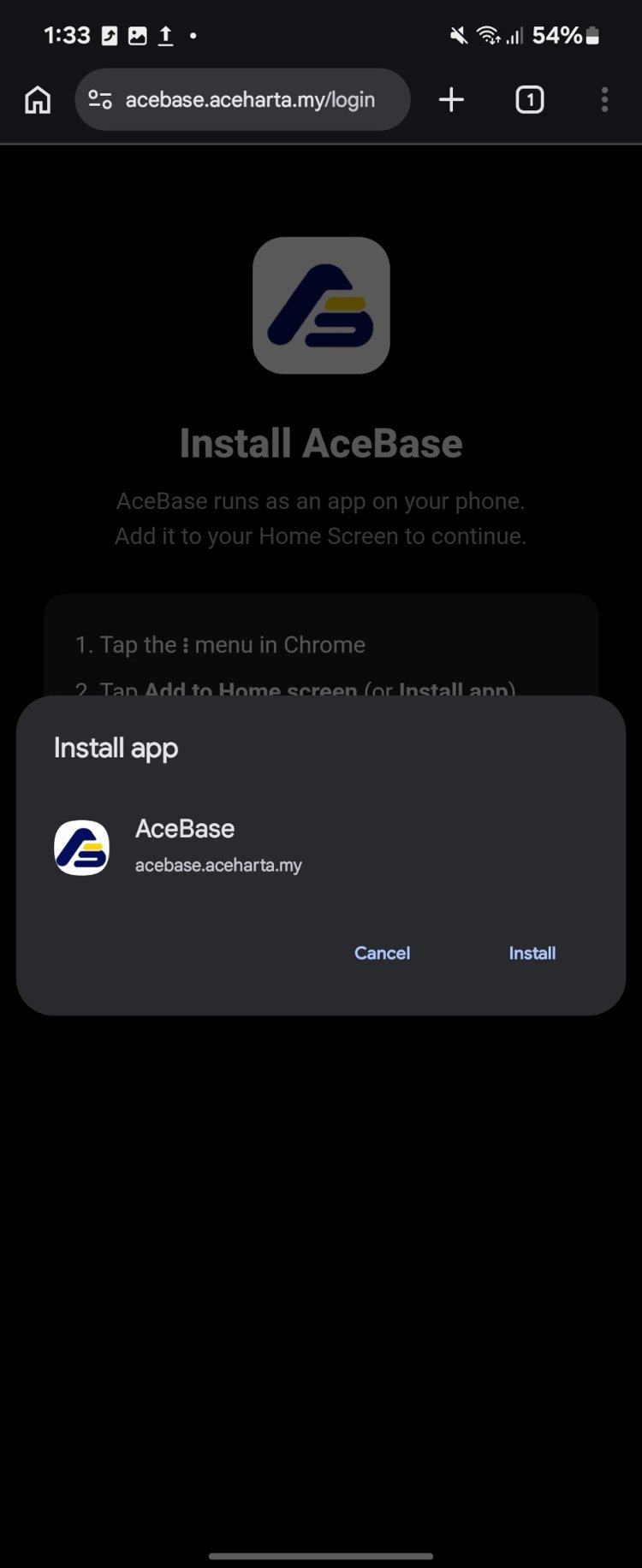
Android (Chrome)
Tap the ⋮ menu at the top right, then Install and create shortcut, then Install, then Install again.
5Every sign-in after this
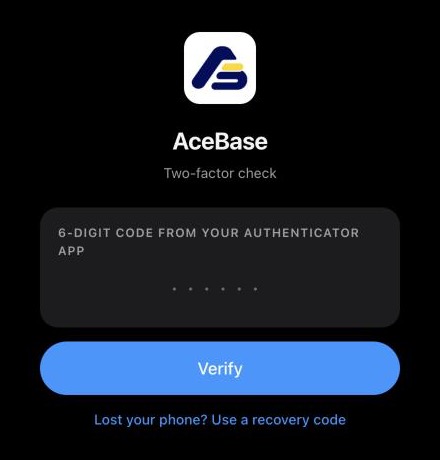
Username and password, then the 6-digit code.
Open Passwords (iPhone) or Google Authenticator (Android), find AceBase, type the 6-digit code shown there.
The code changes every 30 seconds. Wrong code? Wait for the next one.
Need help?
- Link expired. It works for 7 days, once. Message the admin who invited you.
- No email. Check Spam or Promotions. Still nothing? Message the admin who invited you.
- Lost your phone. Tap Lost your phone? Use a recovery code on the sign-in screen, then ask the admin who invited you to reset two-factor.
- Forgot password. Tap Forgot password? on the sign-in screen.